Home / Guides / Connectivity & power
Thunderbolt 4 vs USB4: What Actually Differs on a Laptop Port
Thunderbolt 4 vs USB4 explained: same USB-C connector, but Thunderbolt 4 sets higher minimums for speed, displays, PCIe and charging. How to check a port.
Thunderbolt 4 vs USB4: the short answer
In the Thunderbolt 4 vs USB4 question, the main difference is not the plug but the promise. USB4 is a USB-IF specification with fairly low minimum requirements. Thunderbolt 4 is an Intel-certified implementation that must comply with the USB4 specification and then adds stricter floors for speed, external displays, PCIe data, charging and security.
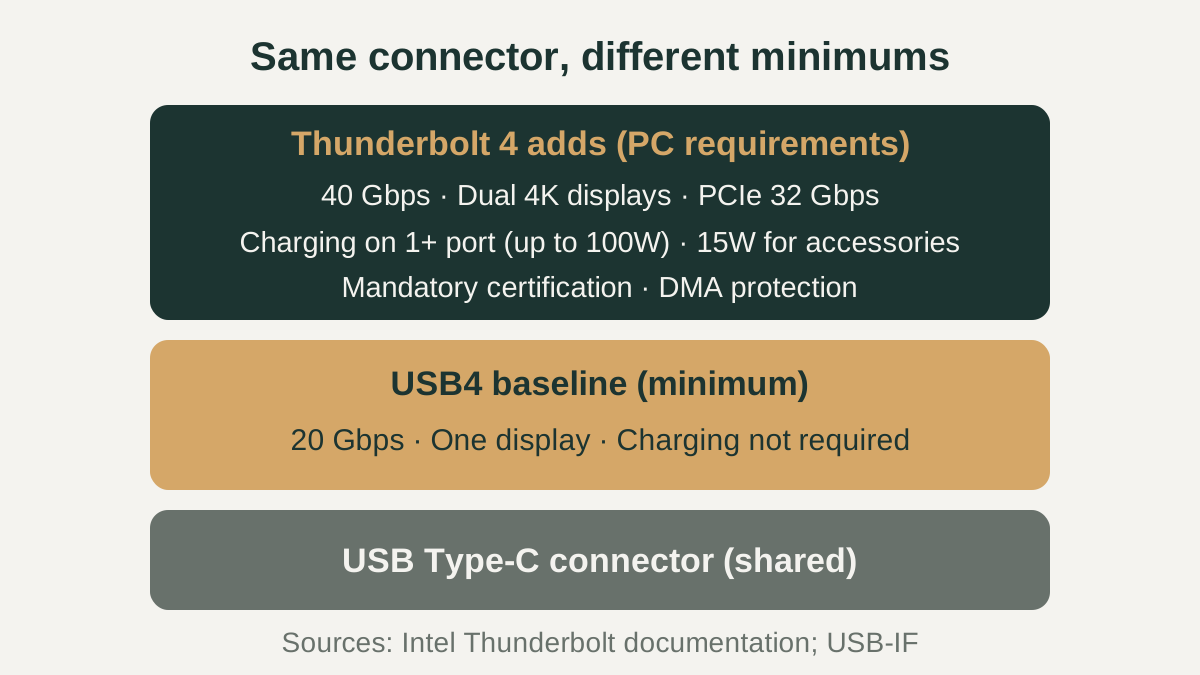
Intel's own comparison puts it plainly: USB4 requires a minimum of 20 Gbps bandwidth, one display and no charging support, although some USB4 devices exceed those requirements. A Thunderbolt 4 computer has to meet 40 Gbps, dual 4K video and the other items listed below. So a USB4 port may match Thunderbolt 4 on a given laptop, but only the Thunderbolt label tells you those features are required rather than optional.
Same USB-C connector, different requirements
Both standards use the USB Type-C connector, so a Thunderbolt 4 port and a USB4 port can look identical. Intel describes Thunderbolt as working through a USB-C connector by using USB 2, USB 3, USB4, DisplayPort and PCIe protocols, and its Thunderbolt 4 requirement list includes USB4 specification compliance.
The shared roots go deeper. The USB-IF notes that USB4 builds on a Thunderbolt protocol specification contributed by Intel, and that USB4 supports compatibility with existing USB 3.2, USB 2.0 and Thunderbolt 3 hosts and devices. In practice this means most cables and accessories will physically connect and fall back to a common mode. What changes from port to port is which speeds, display outputs and power levels the laptop maker actually chose to implement.
What Thunderbolt 4 adds on top of USB4
Intel's Thunderbolt technology brief lists the PC requirements for Thunderbolt 4: 40 Gbps link speed, support for dual 4K displays, 32 Gbps of PCIe data and 10 Gbps USB 3 data. At least one computer port must support charging, required up to 100W for thin and light notebooks that charge below that level. Ports must supply at least 15W to accessories, and the PC must wake from sleep when connected to a Thunderbolt dock.
Reliability items are also part of the requirement set: mandatory certification for shipping computers, accessories and cables, Intel VT-d-based DMA protection (or an equivalent on non-Intel processors), and universal cables up to 2 meters that carry 40 Gbps. The table compares these floors with the USB4 minimum Intel cites and with Thunderbolt 5.
| Requirement | USB4 minimum (per Intel) | Thunderbolt 4 PC requirement | Thunderbolt 5 PC requirement |
|---|---|---|---|
| Link speed | 20 Gbps | 40 Gbps | 80 Gbps (120 Gbps with Bandwidth Boost) |
| External displays | One display | Dual 4K | Dual 6K |
| PCIe data | No floor listed | 32 Gbps | 64 Gbps |
| PC charging on at least one port | Not required | Required up to 100W | Required up to 140W, available up to 240W |
| Certification and DMA protection | Not part of the Thunderbolt program | Mandatory certification, VT-d DMA protection | Mandatory certification, VT-d DMA protection |
USB4 Version 2.0 and Thunderbolt 5
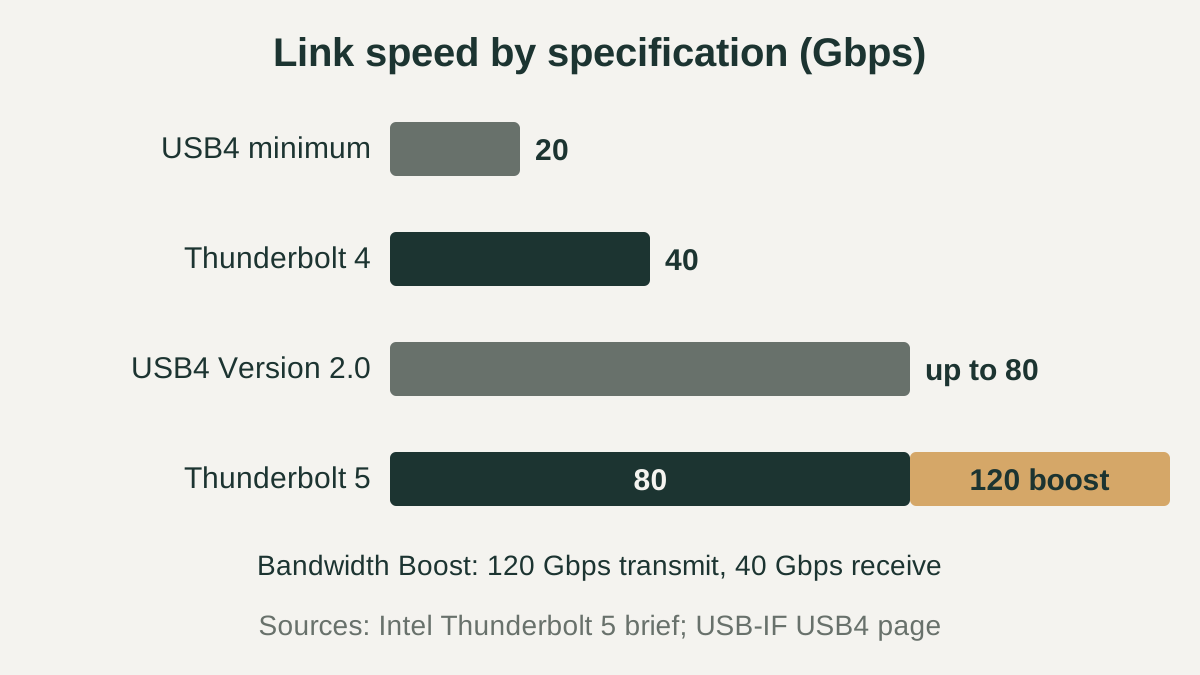
The next step follows the same pattern. The USB-IF describes USB4 Version 2.0 as offering up to 80 Gbps operation over 80 Gbps certified cables, with two-lane operation over existing USB Type-C cables. Intel says Thunderbolt 5 leverages USB4 v2 and DisplayPort 2.1, using PAM-3 signaling to reach 80 Gbps in each direction.
Thunderbolt 5 also adds Bandwidth Boost, based on the asymmetry mode in the USB4 v2 specification. When a setup needs a lot of display bandwidth, the link can shift to 120 Gbps transmit and 40 Gbps receive. Intel lists Thunderbolt 5 PC requirements of dual 6K video, 64 Gbps PCIe data and charging required up to 140W. As with version one, a USB 80Gbps port may offer some of this, but the Thunderbolt 5 certification is what makes these items mandatory.
How to tell what a laptop port supports
Intel's advice is to look for the Thunderbolt icon next to the USB-C port or check the product's I/O specification. Not every USB-C port carries Thunderbolt, and many laptops mix port types, so read the spec line for each port rather than assuming they match.
For USB ports, the USB-IF recommends consumer-facing names based on signaling speed: USB 80Gbps, USB 40Gbps, USB 20Gbps, USB 10Gbps and USB 5Gbps. Its guidance says terms such as USB4 Version 2.0 and USB4 Version 1.0 are not intended for product names or packaging, so a spec sheet may list USB 40Gbps rather than USB4. Speed alone is not the full picture. Look separately for DisplayPort output, power delivery input and output wattage, and the number of supported external displays, because those are the items USB4 leaves optional.
Checklist before you buy
Use these points with the manufacturer's spec sheet or support page open. If a line is missing from the official specifications, treat that feature as unconfirmed and ask the seller or check the support documentation before relying on it for a dock, display or storage setup. The same check applies to docks and cables, since each link in the chain can limit speed, display output or charging.
- Confirm whether each USB-C port is labeled Thunderbolt 4, Thunderbolt 5, or USB 20/40/80Gbps in the official I/O specifications.
- Check how many external displays the laptop supports through USB-C and at what resolution.
- Verify which ports accept charging input and the wattage the laptop needs.
- If you use fast external storage or an external GPU enclosure, look for Thunderbolt PCIe support rather than a USB speed alone.
- Match your cable to the port: Thunderbolt-certified or USB 40Gbps/80Gbps certified cables for full-speed links.
- Remember that Thunderbolt 5 accessories run at the lower host speed on a Thunderbolt 4 or USB4 laptop.