MacBook External Monitor Support: How Many Displays Each Chip Can Run
How many external displays each Apple silicon MacBook supports, when the lid must be closed, which ports to use, and how to check your own model.
How many external monitors can a MacBook support?
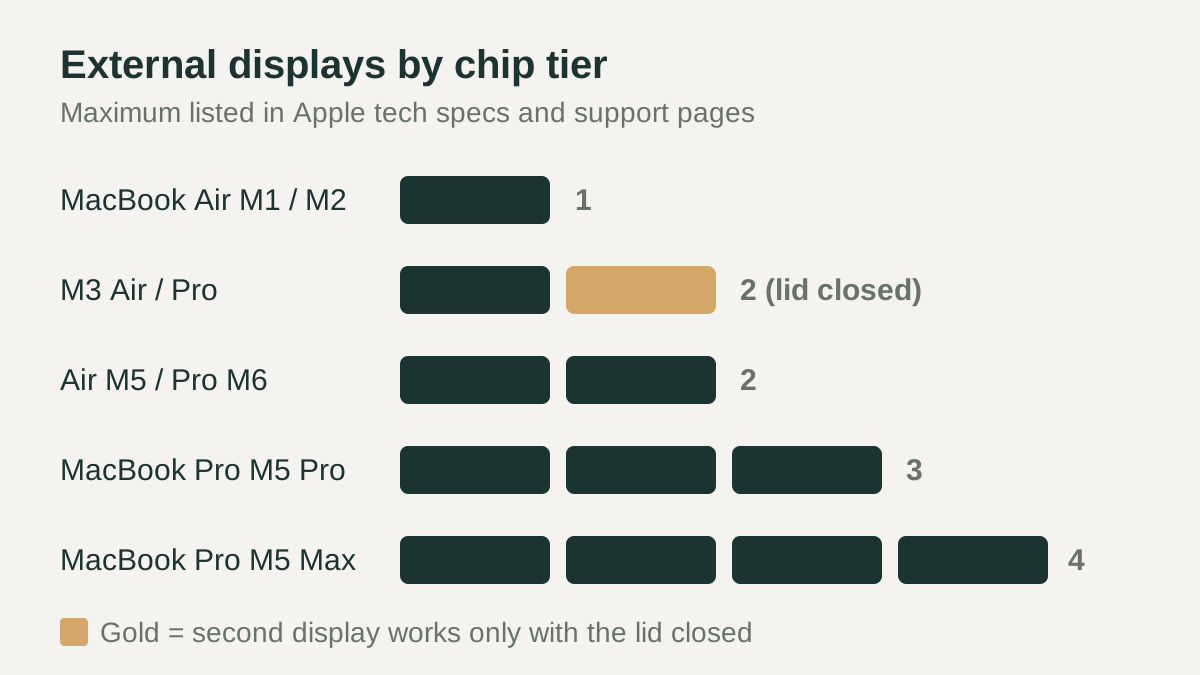
MacBook external monitor support is set by the chip, not by screen size or price tier. Apple's own guidance says the number of displays you can use at the same time depends on your Mac model, and also on the resolution and refresh rate of each display. On the spec pages checked for this guide, the range runs from one external display on the MacBook Air with M1 or M2 up to four on a MacBook Pro with M5 Max.
The short version: base chips in older MacBook Air models drive one monitor, the M3 generation can drive two only with the lid closed, and current models list two, three or four displays with the built-in screen still on. The exact count for your machine lives in the Display Support section of its tech specs page.
Displays supported by chip tier
The table below collects the external display figures from Apple's tech specs and support pages. It lists only models whose pages were checked, so it is not a complete history of every MacBook. Where Apple gives two configurations, such as several 6K displays or one 8K display, both are shown, because a higher resolution on one screen usually reduces how many screens the chip can run.
Apple's current spec pages also note that the built-in display keeps running at full native resolution alongside the external displays, so the laptop screen counts as an extra workspace on those models.
| Model and chip | External displays | Lid requirement | Maximum resolution listed by Apple |
|---|---|---|---|
| MacBook Air (M1, 2020) | 1 | None; built-in display stays on | One display up to 6K at 60Hz |
| MacBook Air (M2, 2022) | 1 | None; built-in display stays on | One display up to 6K at 60Hz |
| MacBook Air or MacBook Pro with M3 | 2 | Second display needs the lid closed | First up to 6K at 60Hz; second up to 5K at 60Hz |
| MacBook Air (M5) | 2 | None; built-in display stays on | Two up to 6K at 60Hz, or one up to 8K at 60Hz |
| 14-inch MacBook Pro (M6) | 2 | None; built-in display stays on | Two up to 6K at 60Hz, or one up to 8K at 60Hz |
| MacBook Pro (M5 Pro) | 3 | None; built-in display stays on | Three up to 6K at 60Hz or 4K at 144Hz |
| MacBook Pro (M5 Max) | 4 | None; built-in display stays on | Four up to 6K at 60Hz, or two up to 8K at 60Hz |
The M3 clamshell rule for two displays
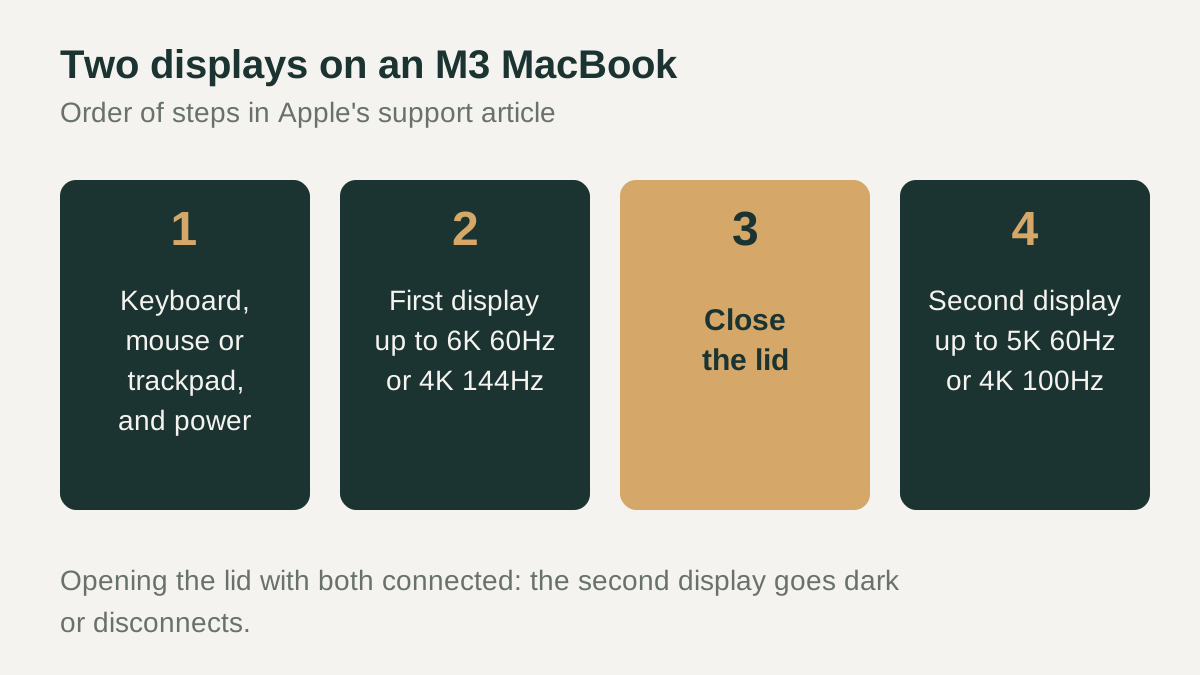
MacBook Air and MacBook Pro models with the M3 chip are the main case where closing the lid matters. Apple's support article says these laptops can connect two external displays simultaneously when the lid is closed. The MacBook Air needs macOS Sonoma 14.3 or later, and the MacBook Pro needs macOS Sonoma 14.6 or later.
The setup has a specific order. Connect an external keyboard and a mouse or trackpad, and connect the Mac to power, which can come from the display itself over USB-C. Then connect the first display, which can run up to 6K at 60Hz or 4K at 144Hz. Close the lid and connect the second display, which can run up to 5K at 60Hz or 4K at 100Hz. If you open the lid while both are connected, the second display goes dark or disconnects.
Ports, cables and maximum resolutions
Apple's display guide says to connect a monitor's video cable to a Thunderbolt or HDMI port on the Mac and to identify the port carefully, because different ports can look similar. If the Mac lacks the port your cable needs, an adapter or a different cable may solve it.
The current MacBook Air has two Thunderbolt 4 ports rated up to 40Gb/s, and Apple says it supports up to two external displays over a single Thunderbolt port, with native DisplayPort 1.4 speeds and DSC. The 14-inch MacBook Pro with M6 also uses Thunderbolt 4, while the M5 Pro and M5 Max models use Thunderbolt 5 ports rated up to 120Gb/s. Every current MacBook Pro also has an HDMI port, and Apple lets displays use any combination of Thunderbolt and HDMI ports. The older M1 MacBook Air lists Thunderbolt 3 video output, native DisplayPort over USB-C, and HDMI through adapters sold separately.
Docks, hubs and DisplayLink
A dock is convenient, but Apple's documentation does not say that a dock or hub raises the native display count of a chip. Apple does describe daisy-chaining additional displays from the downstream ports of an Apple display, and its M3 article adds a troubleshooting note: if a display connected through a hub or dock only mirrors the built-in screen, connect it directly to a port on the Mac.
Some docks use DisplayLink, which works differently. Synaptics distributes DisplayLink Manager as separate macOS software and describes it as streamlining the setup of multiple displays up to 4K. Because it depends on installed software rather than the chip's native outputs, check that the dock maker lists your macOS version, and treat DisplayLink screens as a separate path from the counts in Apple's specs.
Checklist before you buy
To check your own model, Apple's identification article says to choose About This Mac from the Apple menu, which shows the model name and chip. Then open that model's tech specs page and read the Display Support section, which lists how many external displays it handles and at what resolutions. Compare those figures with the monitors you plan to use before you buy cables, docks or a second screen.
- Find your model and chip under About This Mac, then read Display Support in its tech specs.
- Count the monitors you want to use and confirm the chip tier supports that many.
- On an M3 MacBook, plan for the lid to stay closed when running two displays.
- Match each monitor's resolution and refresh rate to the limits Apple lists for your model.
- Use Thunderbolt or HDMI ports directly, and choose cables that fit the port without guesswork.
- Treat DisplayLink docks as a software-based option and confirm macOS support first.