Home / Guides / Connectivity & power
Laptop HDMI 2.1 Output: What the Label Does and Does Not Promise
What a laptop HDMI 2.1 port can add (48Gbps, 4K120, 8K60, VRR), why each feature is optional, which cable to use, and how USB-C adapters fit in.
Laptop HDMI 2.1: the short answer
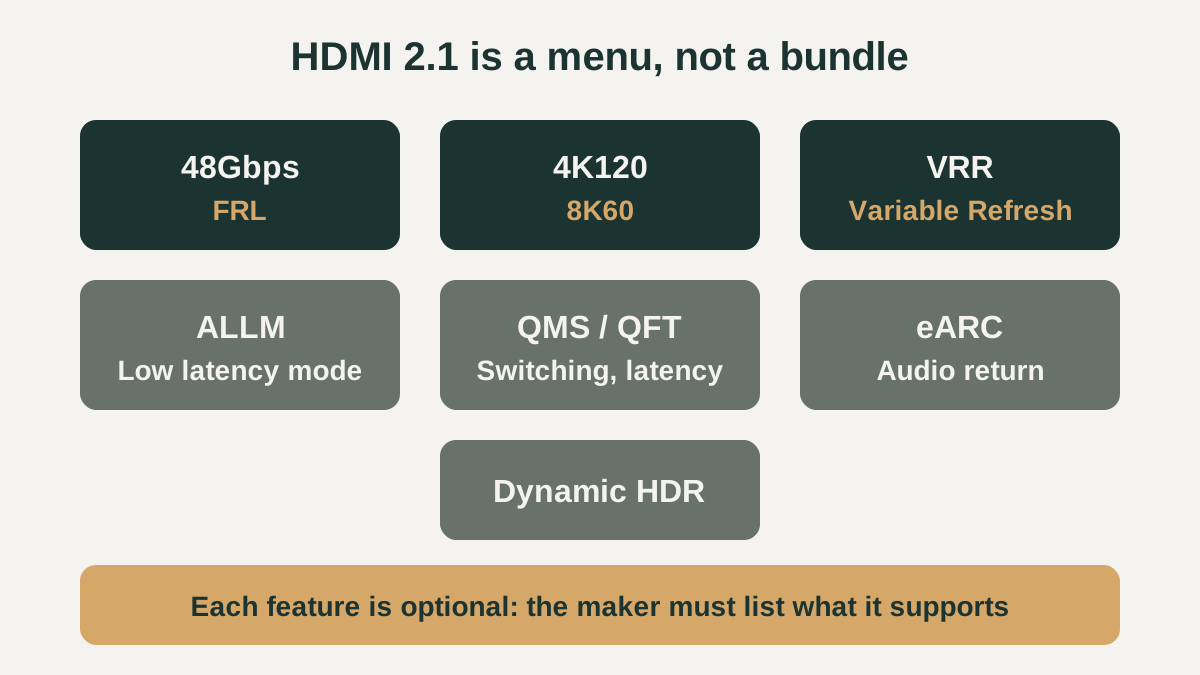
A laptop HDMI 2.1 port can carry much more than older HDMI outputs, but the label alone does not tell you which extras it has. The HDMI 2.1 specification raises bandwidth to 48Gbps and adds support for 8K at 60Hz, 4K at 120Hz, Variable Refresh Rate and other features. HDMI Licensing states that support for each HDMI 2.1 feature is optional.
That is why two laptops with an HDMI 2.1 port can behave very differently with the same monitor or TV. According to the HDMI organization, a manufacturer that promotes HDMI 2.1 compliance is required to list the HDMI 2.1 features the product supports next to that messaging. The practical rule is simple: read the feature list, not just the version number, and pair the port with a certified cable.
What HDMI 2.1 adds
The HDMI Forum's version 2.1 announcement lists the headline changes. Bandwidth rises to 48Gbps, enabling uncompressed HDMI 2.1 features. Supported formats include 8K at 60Hz and 4K at 120Hz, with resolutions up to 10K for commercial AV, industrial and specialty uses. The HDMI site credits Fixed Rate Link (FRL) technology for carrying this higher-bandwidth audio and video.
Several features target motion and responsiveness. Variable Refresh Rate reduces or eliminates lag, stutter and frame tearing. Quick Media Switching removes the blank-screen delay when switching content, Quick Frame Transport lowers latency, and Auto Low Latency Mode applies the ideal latency setting automatically. Dynamic HDR adjusts brightness, contrast, color and detail scene by scene or frame by frame. eARC, the enhanced audio return channel, supports advanced audio formats and mainly concerns TVs and audio systems rather than a laptop's video output.
Does an HDMI 2.1 laptop port support every feature?
Not necessarily. The HDMI organization explains that manufacturers can choose features to suit their market and price point, and that HDMI 2.1 products must implement at least one feature from the specification. Its FAQ even addresses a product that supports HDMI 2.0 features such as TMDS signaling and 18Gbps, but not FRL or 48Gbps: it can still be described as HDMI 2.1 if it complies and lists its supported features.
For a laptop buyer, the useful details are the stated maximum resolution and refresh rate over HDMI, whether FRL or 48Gbps is mentioned, and whether VRR is supported. The table shows which spec sheet wording to look for.
| HDMI 2.1 feature | What it does | Spec sheet wording to look for |
|---|---|---|
| 48Gbps bandwidth (FRL) | Carries high-bandwidth formats uncompressed | FRL, 48Gbps, or an explicit 8K60 / 4K120 output |
| 4K120 and 8K60 | Higher refresh rate or resolution | Maximum HDMI resolution with refresh rate |
| Variable Refresh Rate | Reduces lag, stutter and tearing | VRR listed for the HDMI port |
| Auto Low Latency Mode | Switches the display to low-latency settings | ALLM listed in the feature set |
| eARC | Audio return for advanced formats | Mainly a TV or receiver feature; rarely relevant to a laptop |
Which HDMI cable you need
For 48Gbps configurations, the HDMI organization points to the Ultra High Speed HDMI Cable, which was introduced with the HDMI 2.1 specification and is designed for low electromagnetic interference while remaining compatible with existing HDMI devices. These cables fall under a mandatory Ultra HDMI Cable Certification Program, with testing done at an HDMI Forum Authorized Testing Center.
Certified cables must carry a label on each package or unit of sale that includes the official cable name logo, and the label can be checked with a standard QR code app. Laptop makers echo this. Apple's support page for Mac HDMI output says that for 8K connections you should use an Ultra High Speed 48 Gbps HDMI cable. An older cable may still work at lower settings, so a missing 4K120 mode is a reason to check the cable first.
USB-C and Thunderbolt to HDMI adapters
Some laptops have no HDMI 2.1 port, or no HDMI port at all, and rely on USB-C instead. Intel notes that Thunderbolt 4 and Thunderbolt 5 provide DisplayPort, which can connect to HDMI and other display interfaces through adapters. Apple's guidance for Thunderbolt and USB-C ports is likewise to connect to HDMI with an adapter, and to check the adapter's specifications for supported resolutions.
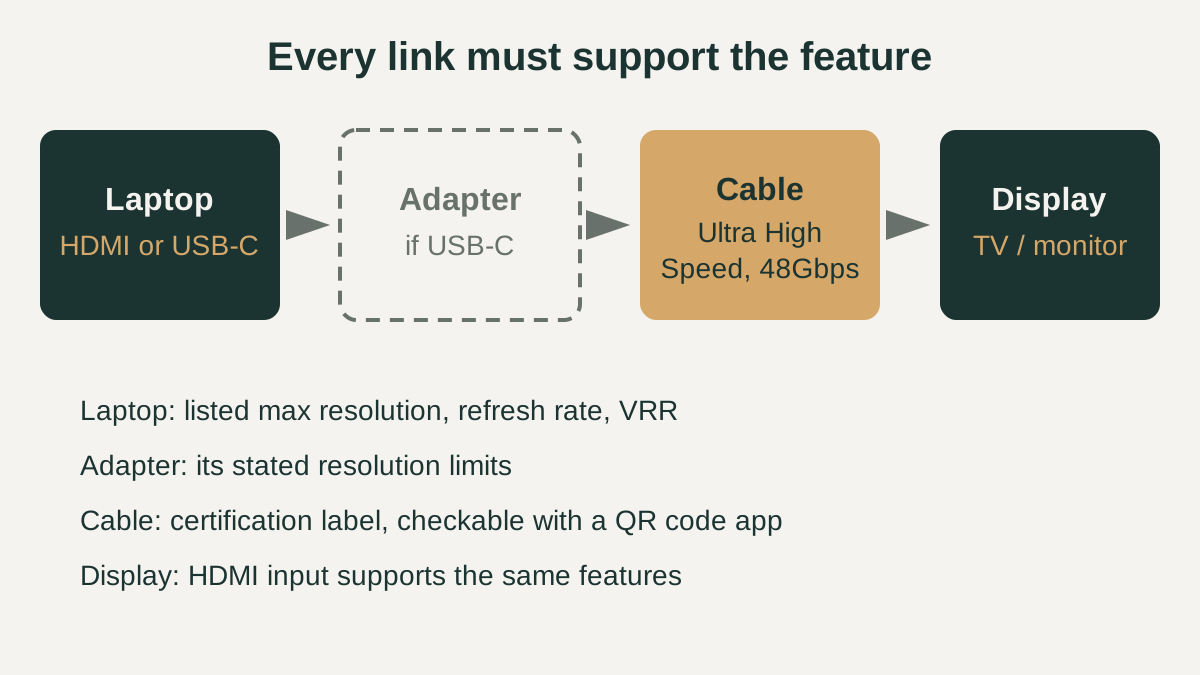
The adapter becomes part of the chain, so the output is limited by the port's display capability, the adapter and the cable together. Apple's own list shows the effect: on MacBook Pro models with M2 Pro, M3 Pro and later chips, the HDMI port supports up to 8K at 60Hz or 4K at 240Hz, yet Apple says adapters are not supported for those 4K 240Hz settings and recommends a direct connection.
Checklist before you buy
Keep the laptop's official specifications and your display's manual side by side. A feature works only when the laptop, any adapter, the cable and the display all support it, and when a spec sheet omits a feature, treat it as unconfirmed until the manufacturer's support pages state it clearly. Settings menus on the display may also need a mode such as VRR switched on.
- Find the exact maximum HDMI resolution and refresh rate listed for the laptop, not just the HDMI version.
- Look for FRL or 48Gbps wording if you need 4K120 or 8K60 over the built-in HDMI port.
- Check whether VRR and ALLM are listed for the HDMI output and supported by your display.
- Use a cable with the Ultra High Speed HDMI certification label and verify it with a QR code app.
- If you plan to use USB-C, confirm the port carries DisplayPort and check the adapter's stated resolution limits.
- Confirm the display's HDMI input also supports the same features you want to use.